Managing Branches
Branches represent the standard, modern way to handle different environments within a single project. In this guide, we will go through a brief definition of branches and how you can work with them.
For a deep dive into branch management and advanced settings, please check the Advanced Dashboard documentation.
Branch Categories
In PaaS.sh, a project is typically composed of multiple branches, allowing your team to develop and test without disrupting the live application. Branches are categorized into three main types:
- Production (
prod): This is your live production environment. It serves your actual end-users and contains your live business data. - Staging (
staging): This is the pre-deployment environment. It acts as an exact replica of your production environment but is oriented towards final feature testing and client approvals. Think of it as an unreleased production environment. - Development (
dev): These branches are dedicated to internal use by developers. This is where active coding happens and new features get their initial testing.
It is important to note that each branch operates with its own completely isolated database. This ensures that development and staging data never corrupts your live production data.
Accessing Branch Management
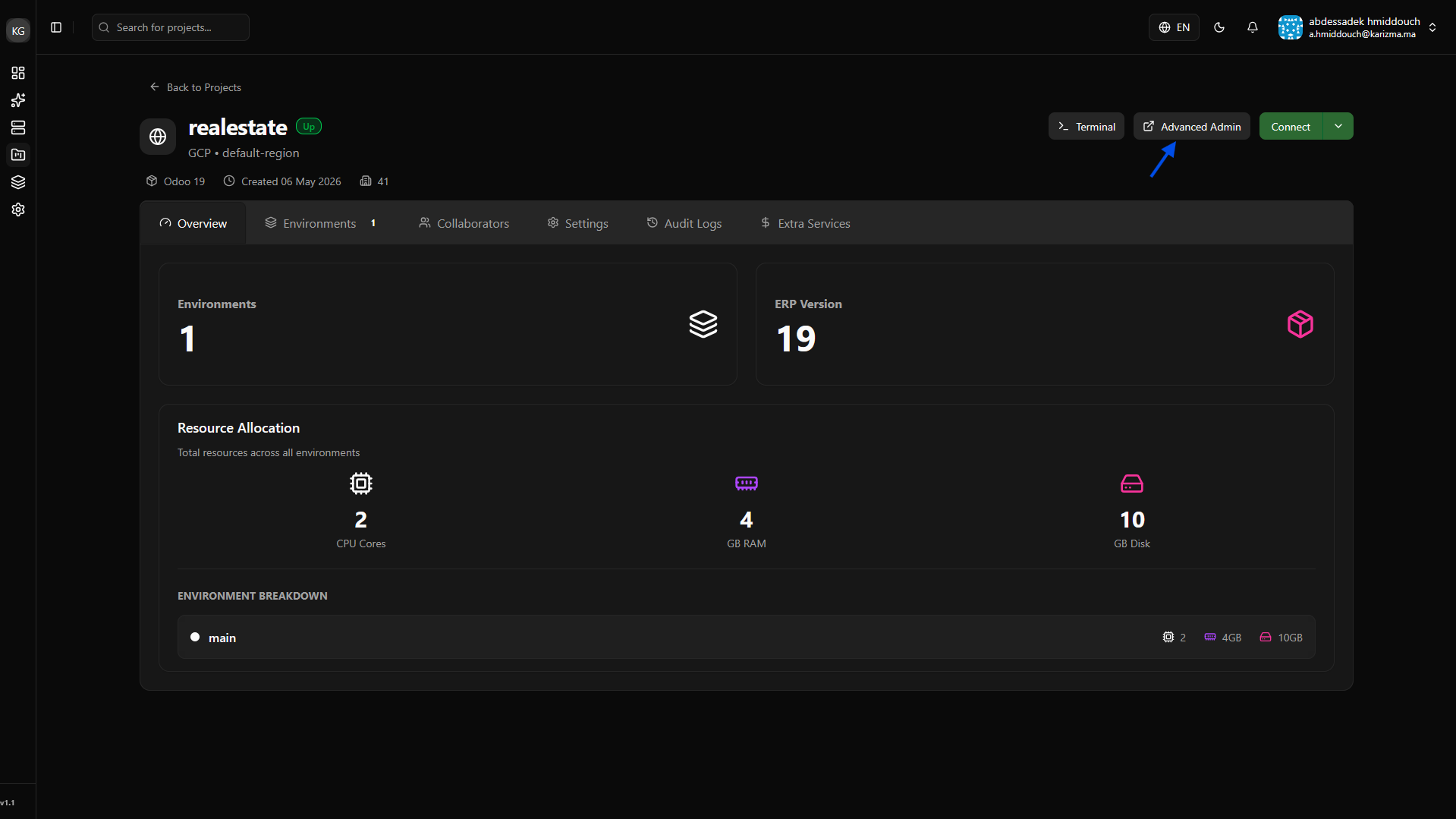
To view and manage your branches, you need to access the Advanced Dashboard from your main project view.
-
Open the Advanced Dashboard: Navigate to your project's main dashboard and click on the Advanced Dashboard button.
-
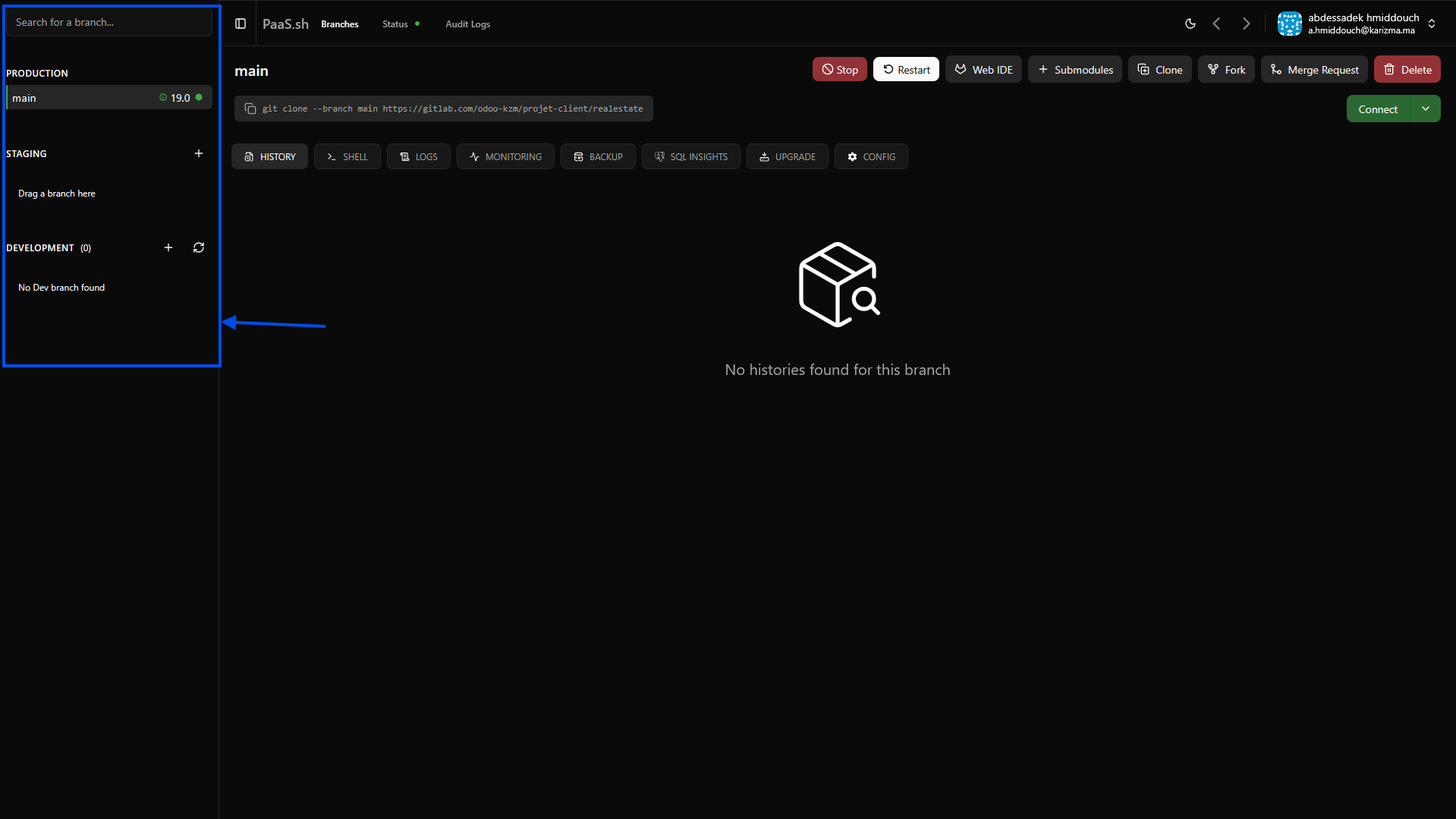
Navigate to Branches: Once inside the Advanced Dashboard, look at the sidebar to find the branch management section. Here you can see a complete overview of all active branches.
Creating a New Branch
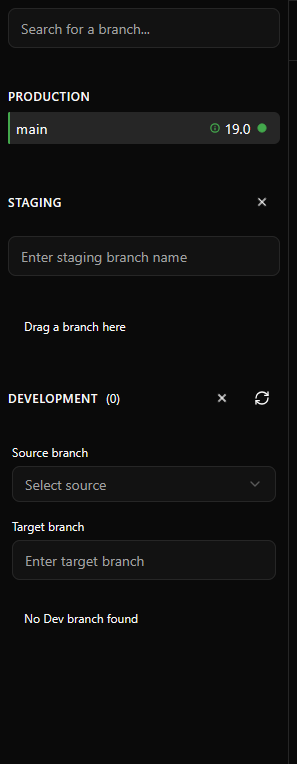
When creating a new branch, the platform handles the source code differently depending on the environment type you are targeting:
- Staging Branches: By default, all staging branches are automatically branched out from your main
prodbranch to ensure an exact replica for final testing. - Dev Branches: When creating a development branch, you have the flexibility to specify the exact source branch you want to copy from.
To create a branch, open the branch creation dropdown, select your target environment type, and fill in the required details.
What's Next?
With your project and branches configured, the final crucial step to secure your workspace is setting up automated data protection.
👉 Let's secure your data: Learn how to configure routines to keep your databases safe in the Backup documentation.