BI Access
Business Intelligence (BI) is a core component of almost every successful business today. Analyzing your Odoo data requires securely connecting your database to external BI tools (such as Power BI, Tableau, or Metabase).
Instead of opening SSH terminals, manually creating read-only PostgreSQL users, and tweaking configuration files, PaaS.sh allows you to generate secure database access for your BI tools with just a few clicks.
Creating a BI Access Credential
To generate a new set of credentials for your BI tool:
-
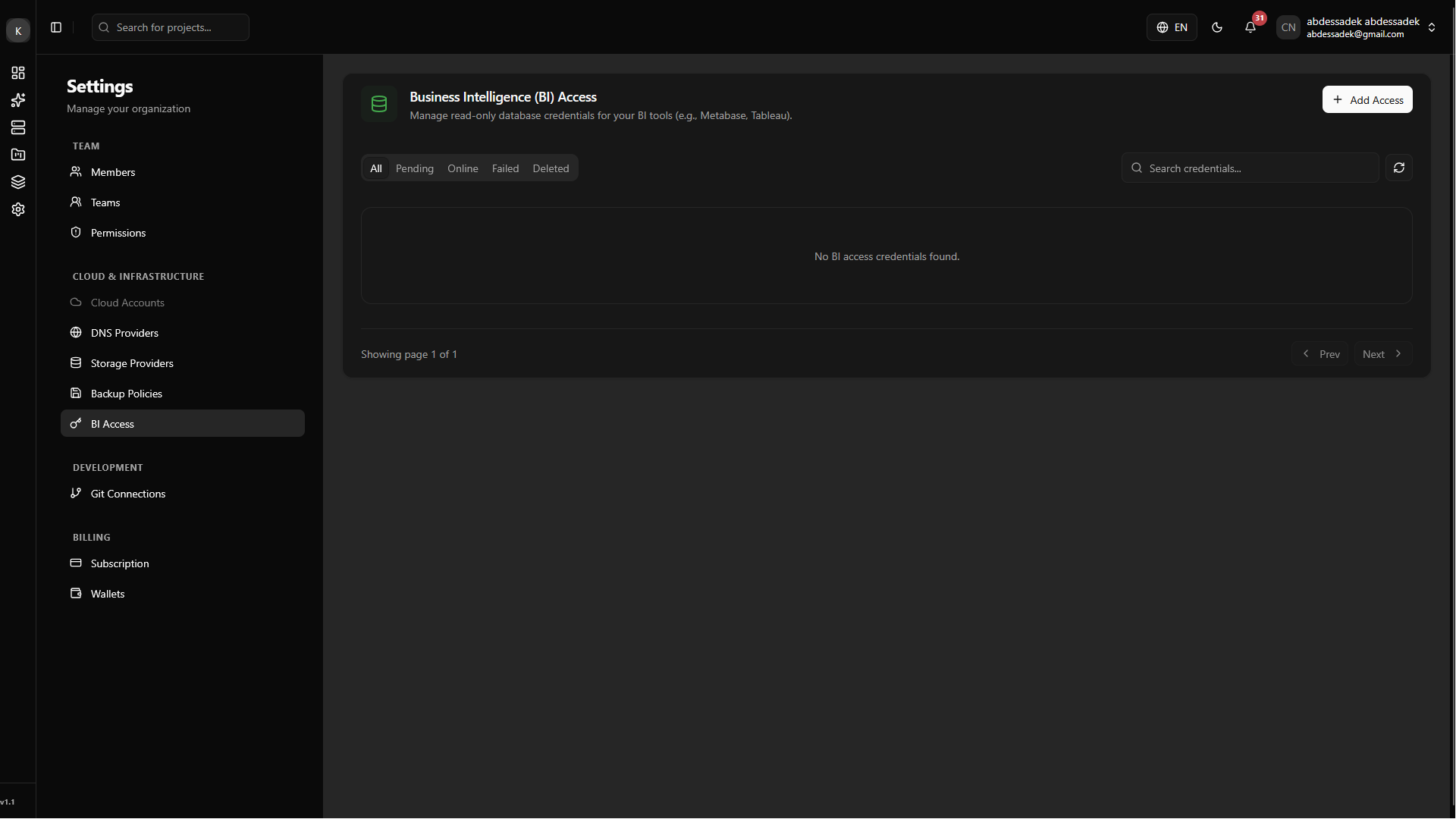
Initiate Creation: Navigate to the BI Access section within your Organization Settings and click on the Create BI Access button.
-
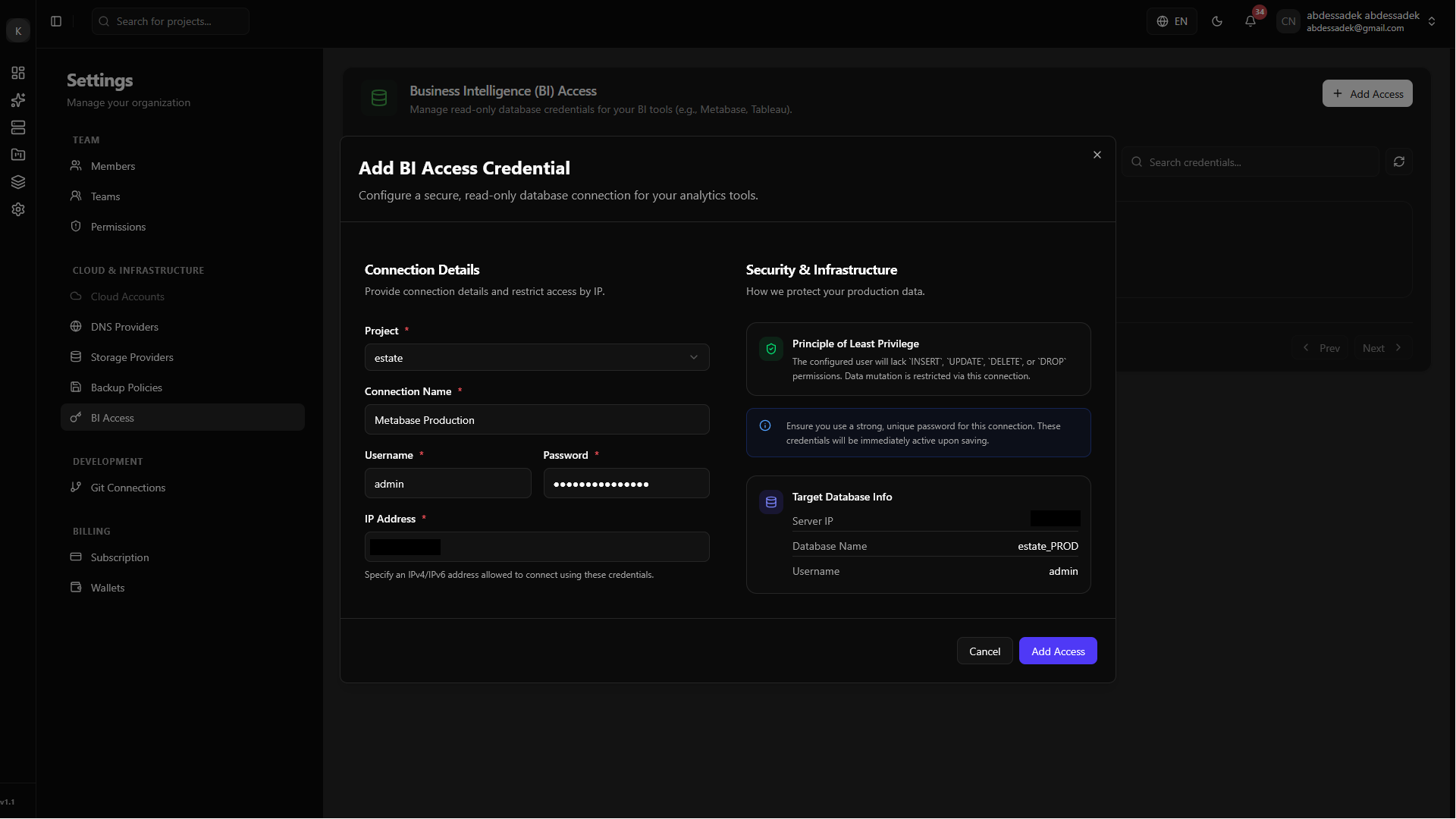
Fill Information: A dialog will appear. Fill in the required details, such as the target environment and access preferences, then click submit.
-
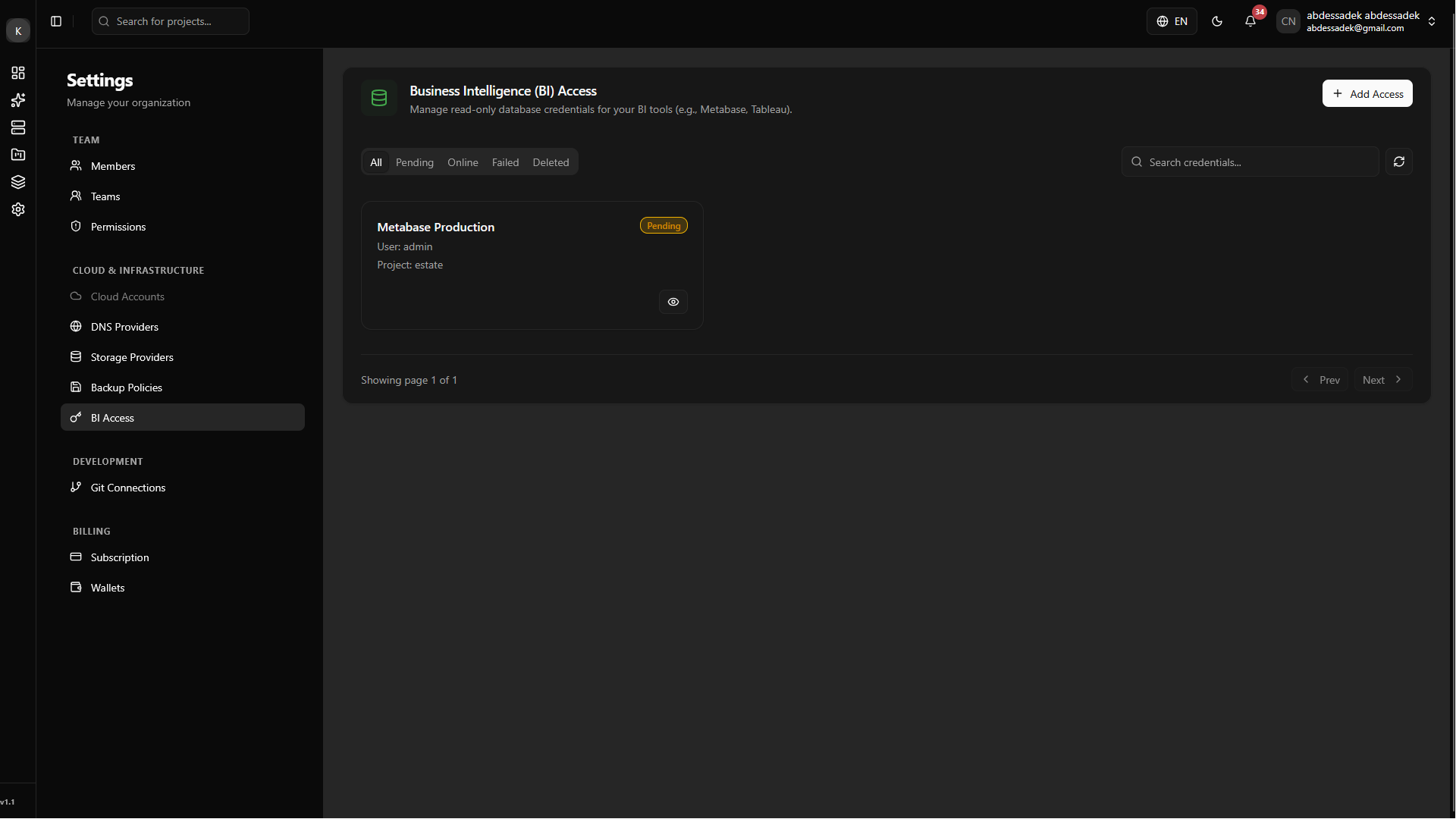
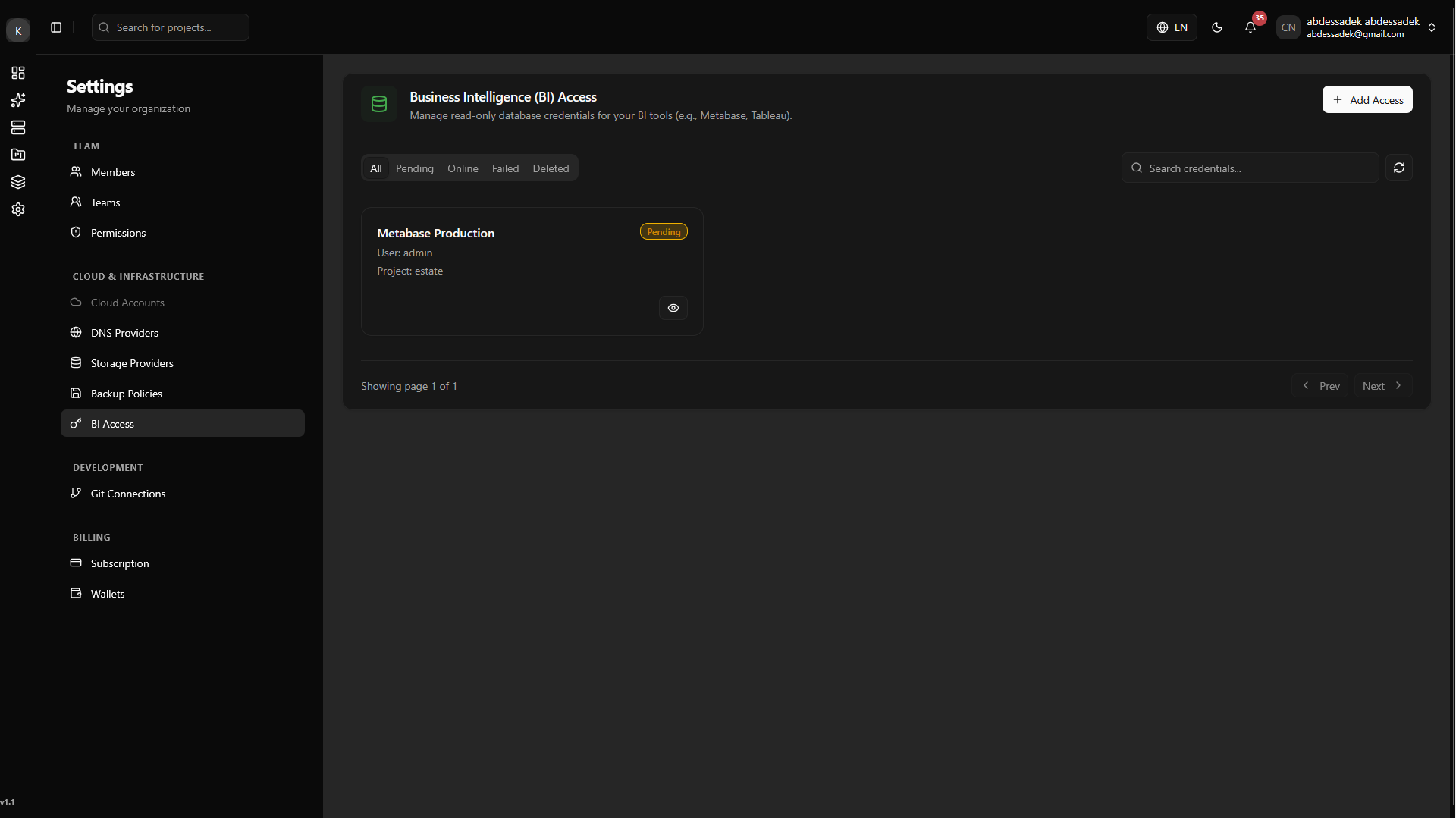
Pending State: Your BI credentials are now being securely provisioned on the server. You will see the access card appear in a Pending state while the system configures the database permissions.
-
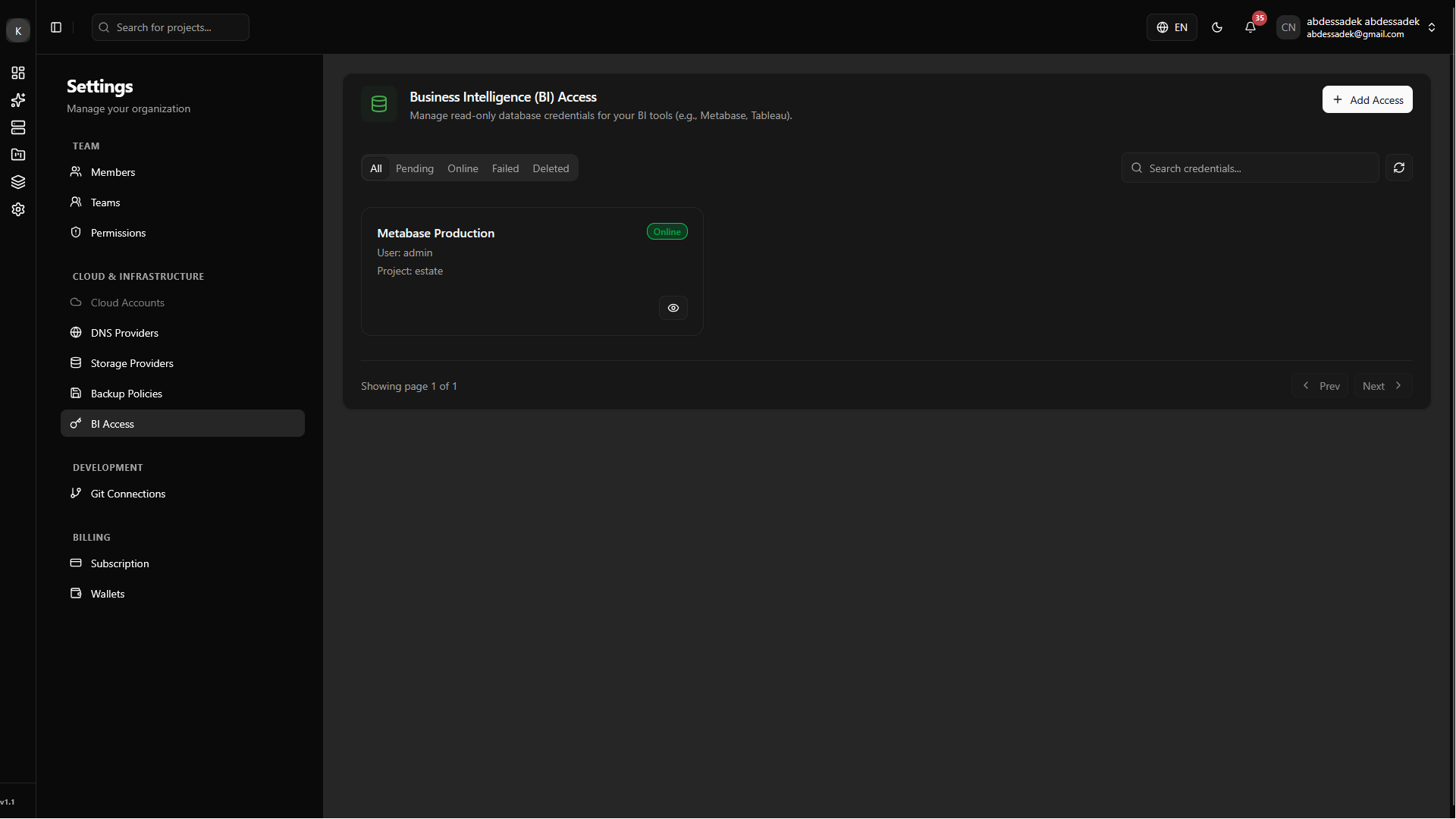
Verified State: After a short moment, the system will finish the setup, and the status will change to Verified. Your BI tool can now securely connect to the database!
Managing Your BI Access
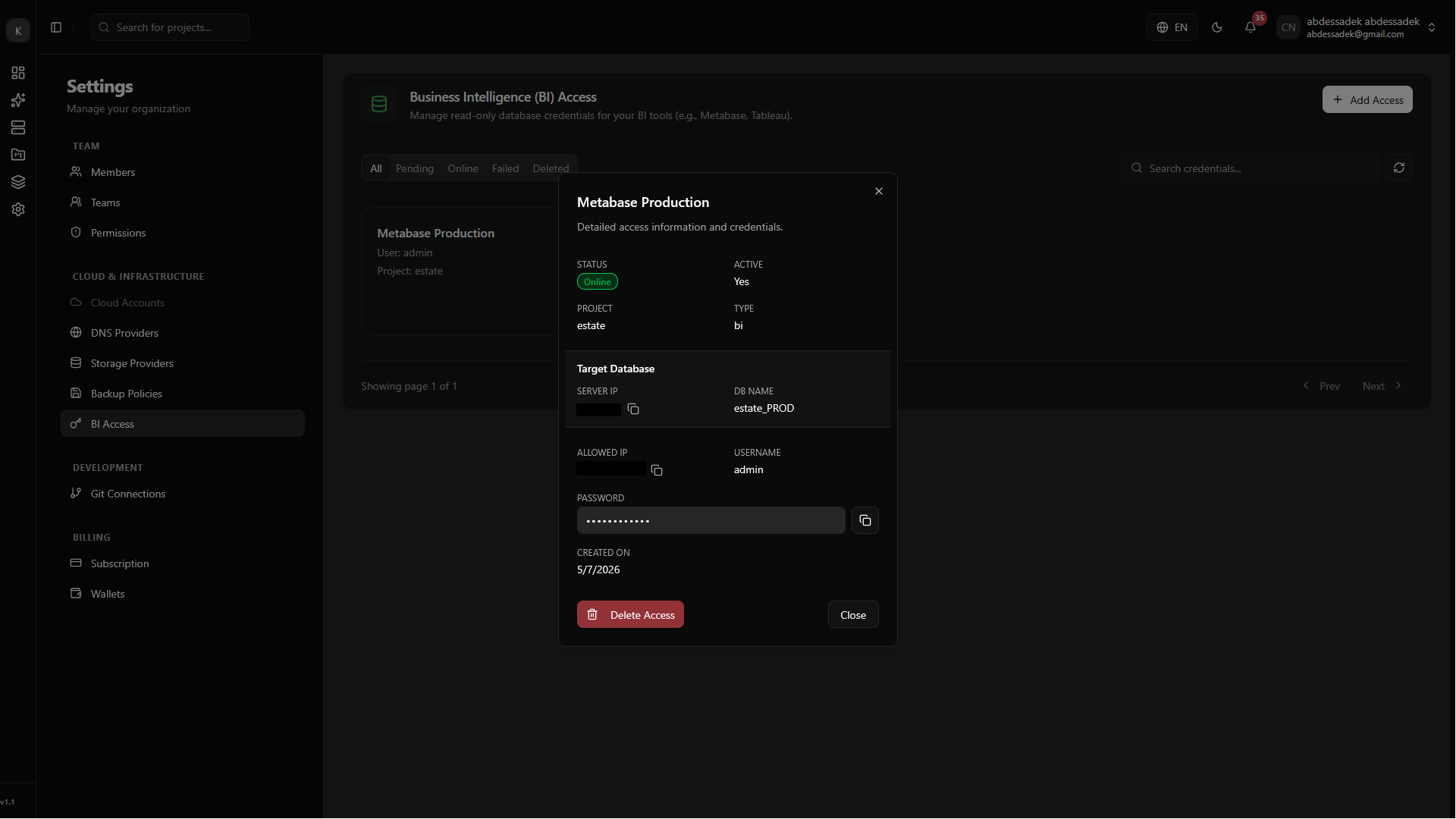
Viewing Connection Details
You can easily retrieve your connection strings and credentials whenever you need them. Simply click on the specific BI Access card to open its details view.
Deleting an Access Credential
If a specific BI tool or analyst no longer requires access to your data, you should revoke their credentials for security purposes.
-
Initiate Deletion: Click the delete icon on the BI access card. The system will immediately begin revoking the database user, and the card will switch to a Pending deletion state.
-
Revoked Successfully: Once the background process securely drops the permissions, the card will display a Deleted status. The credentials will no longer work.
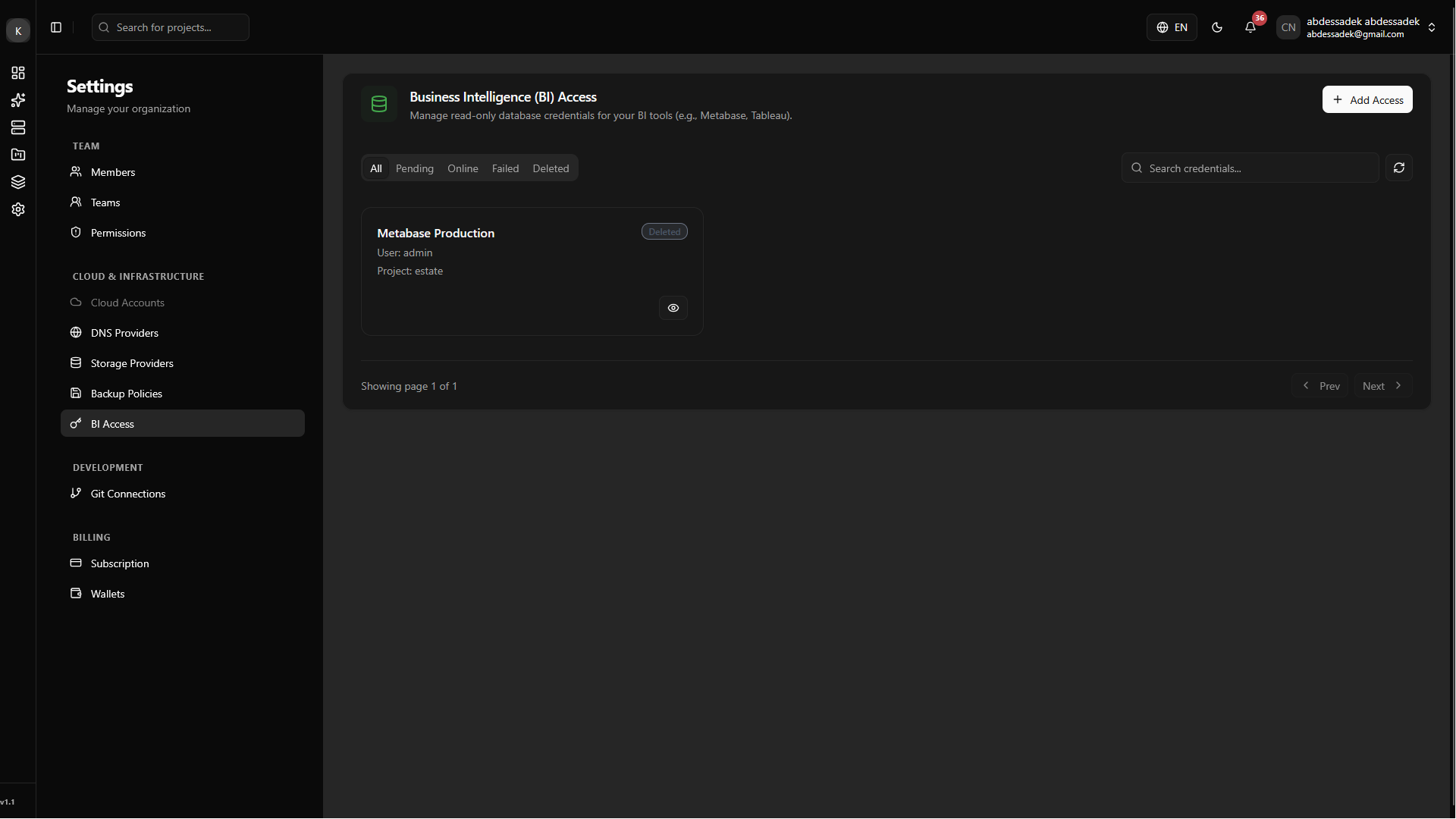
Even after the credentials are revoked, the record stays in your list as "Deleted" for auditing purposes. If you want to clean up your dashboard and remove it permanently from your view, simply click the delete button one more time.