Team Management
Team settings is where we manage the collaborators and contributors who help make the magic happen. Whether you are adding a single developer or organizing an entire department, PaaS.sh gives you the tools to structure your workforce efficiently and securely.
Members
As we covered in the Getting Started guide, your first step in building a workspace is inviting members.
From the Members section, you have a centralized view to invite new users, manage the access levels of existing members, and oversee the general organization profile.
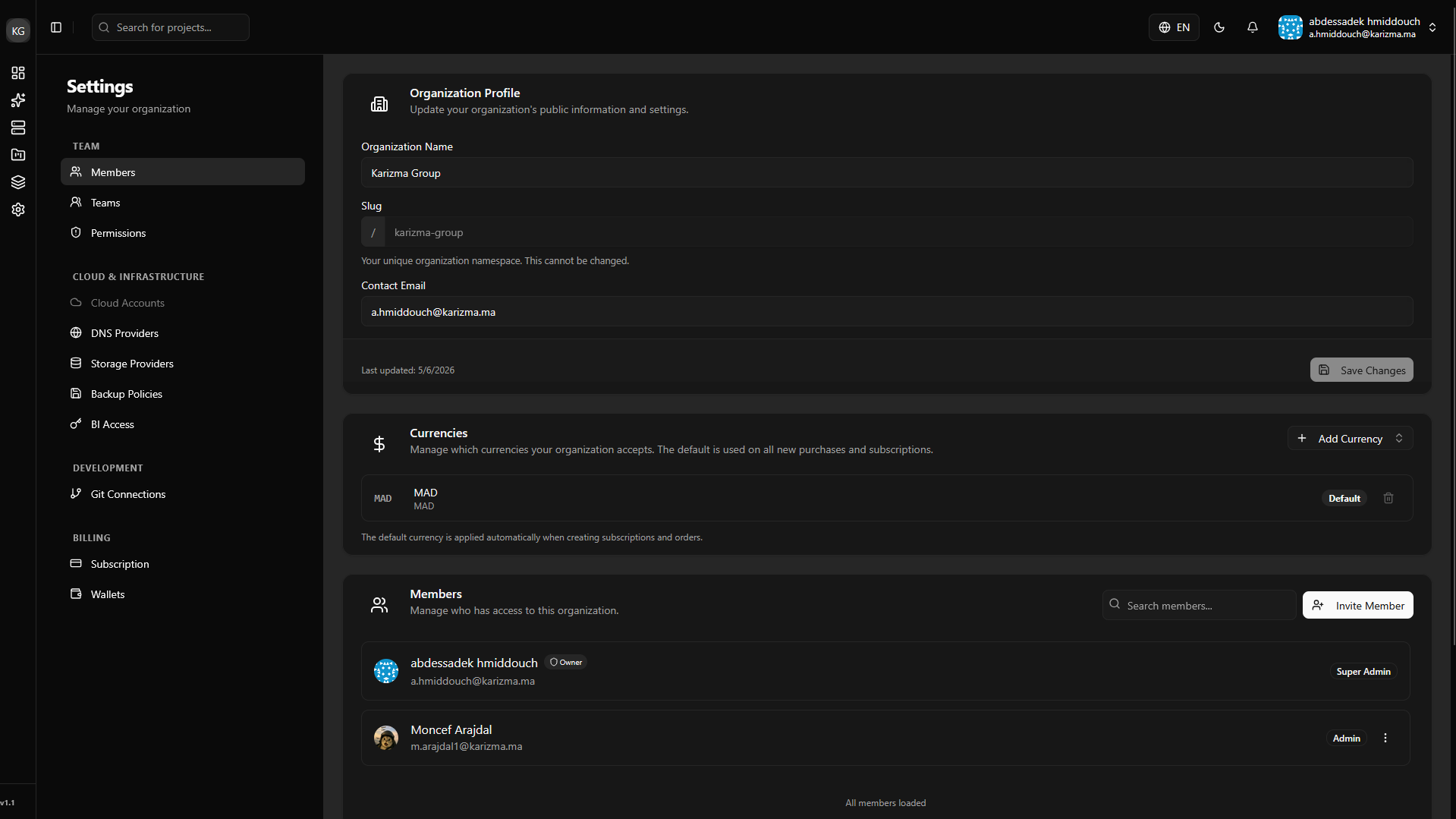
Team Management
Managing individual users one by one can become tedious as your project scales. Teams are logical groups that contain one or more users. Once a team is created, you can assign the entire team to a project with a single click, automatically granting all its members the appropriate access.
You can create and manage your teams directly from the Organization settings.
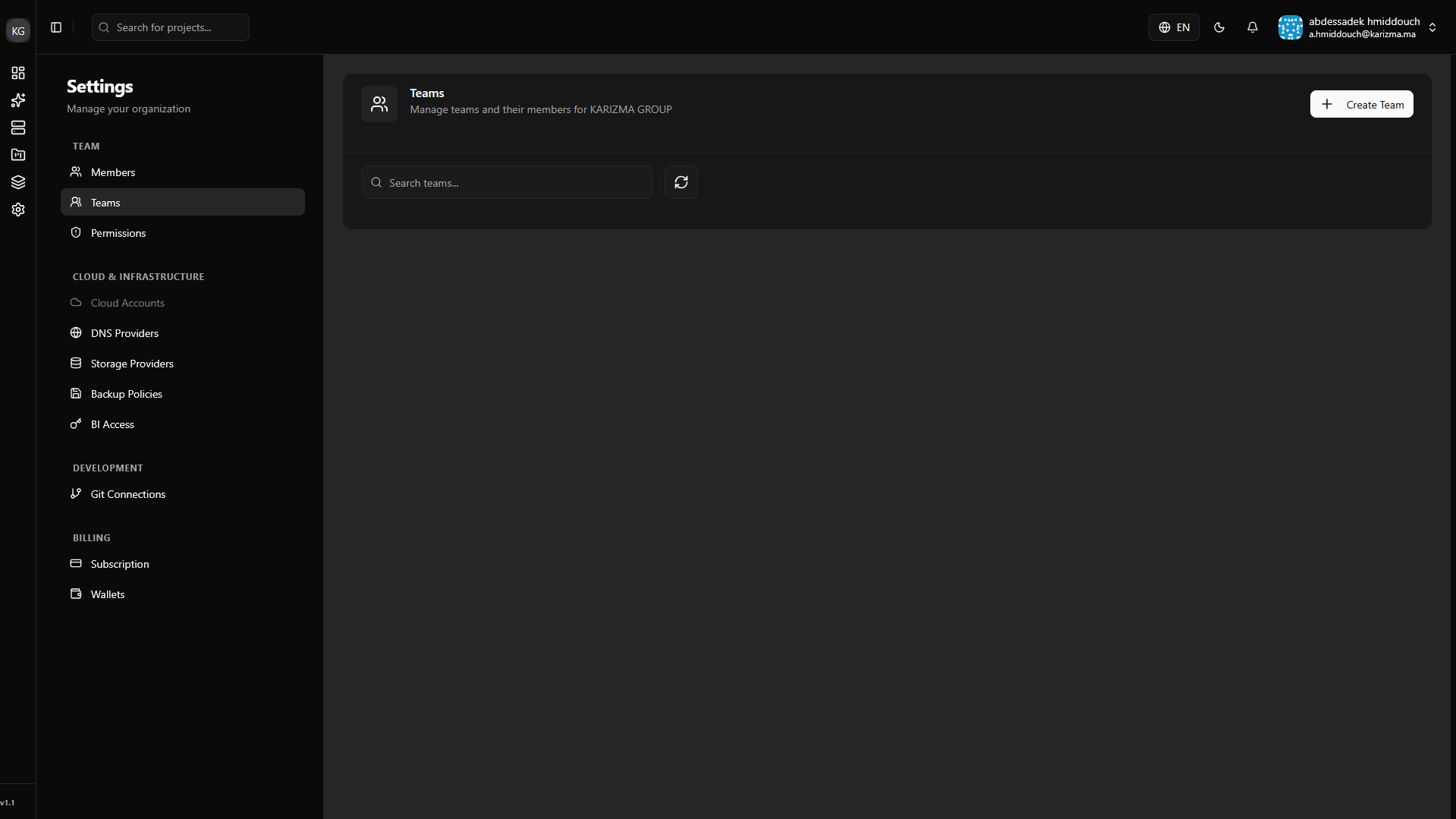
Creating a Team
To set up a new group:
-
Click on the Add Team button and fill in the required information, such as the team name and description.
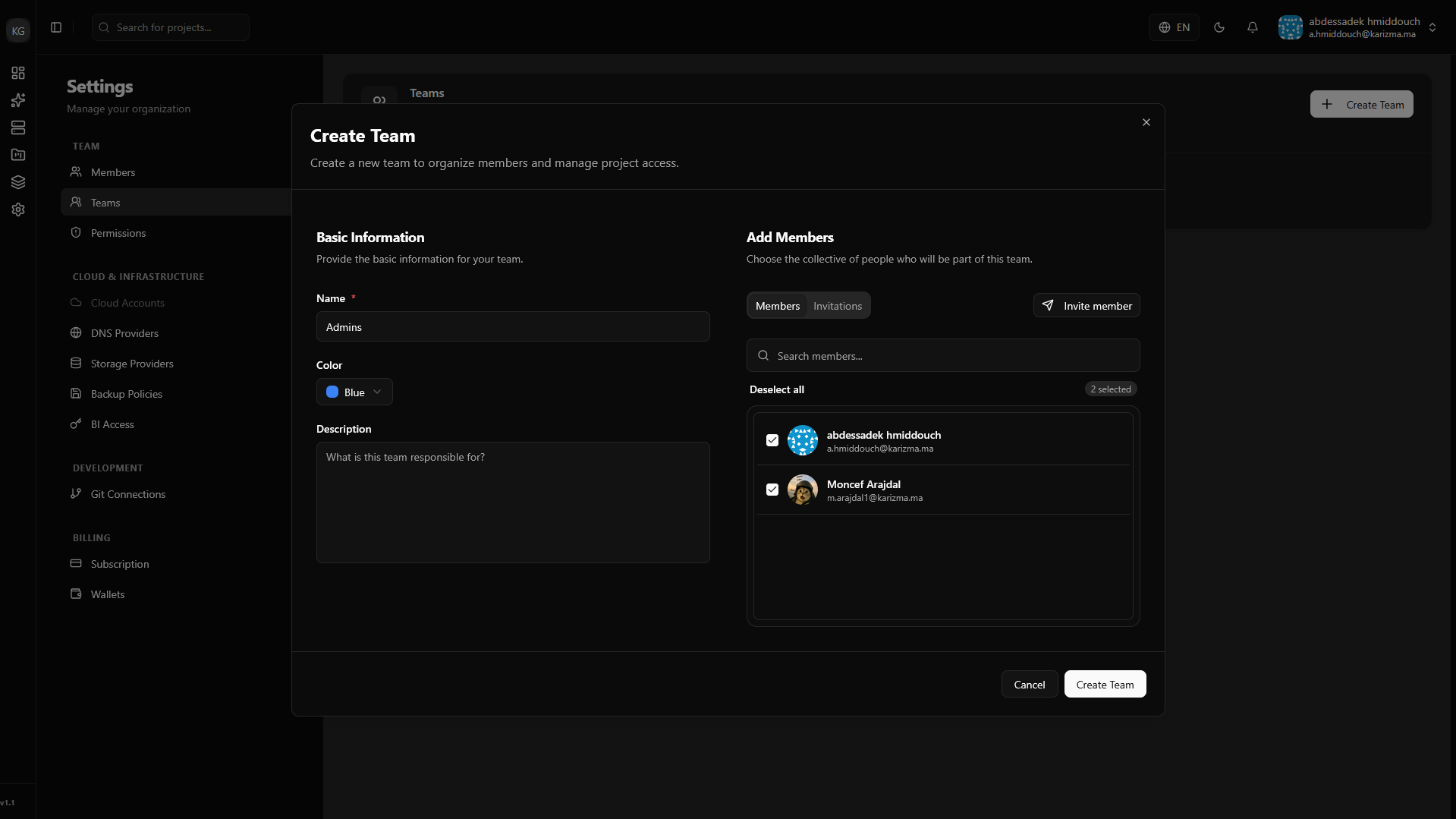
-
Invite Members on Creation: You don't have to wait to add people. You can invite members directly while creating the team. As soon as a user accepts the invitation, they will be added to the team automatically.
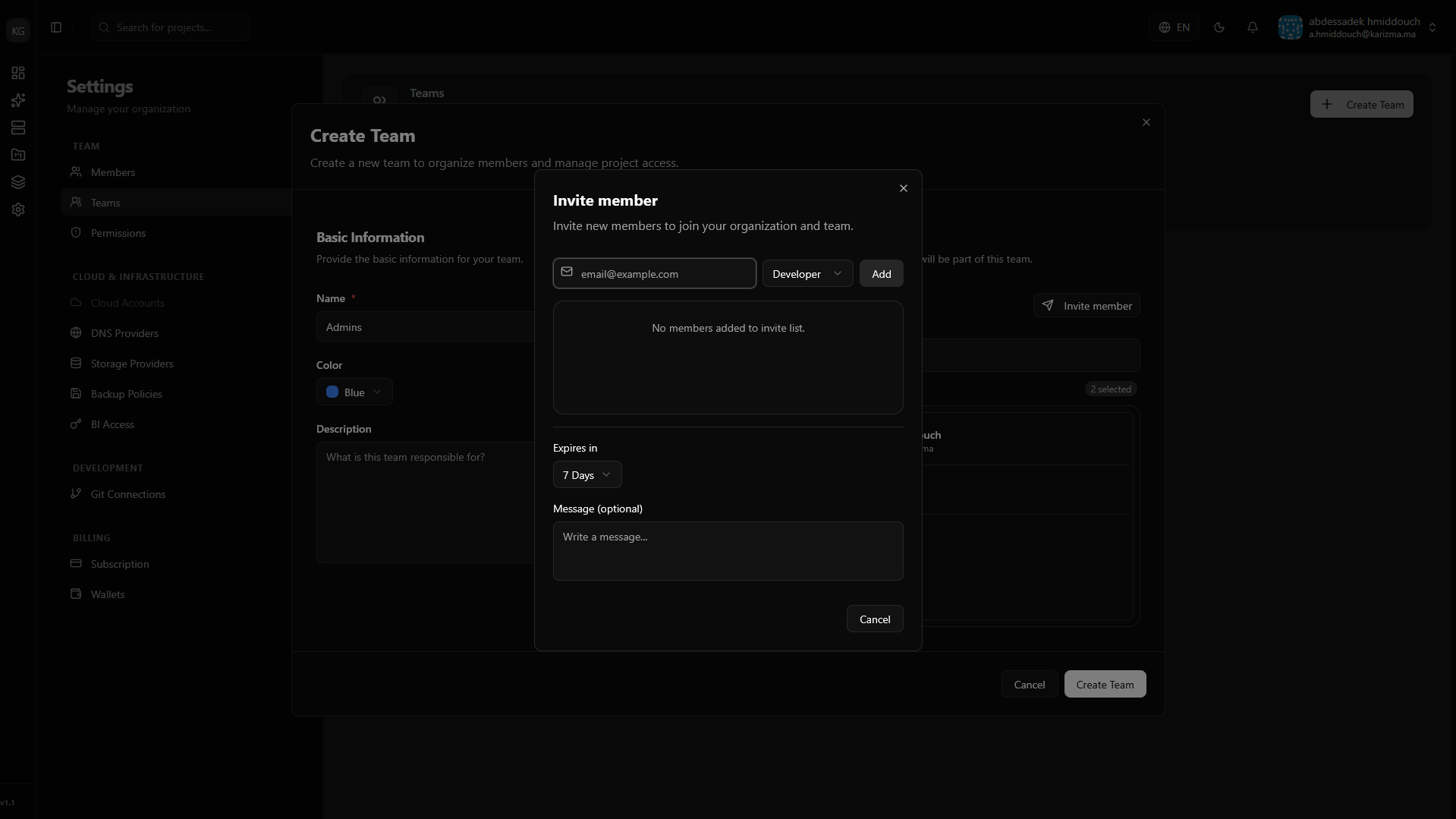
-
Once saved, your newly created team will be visible in the main list.
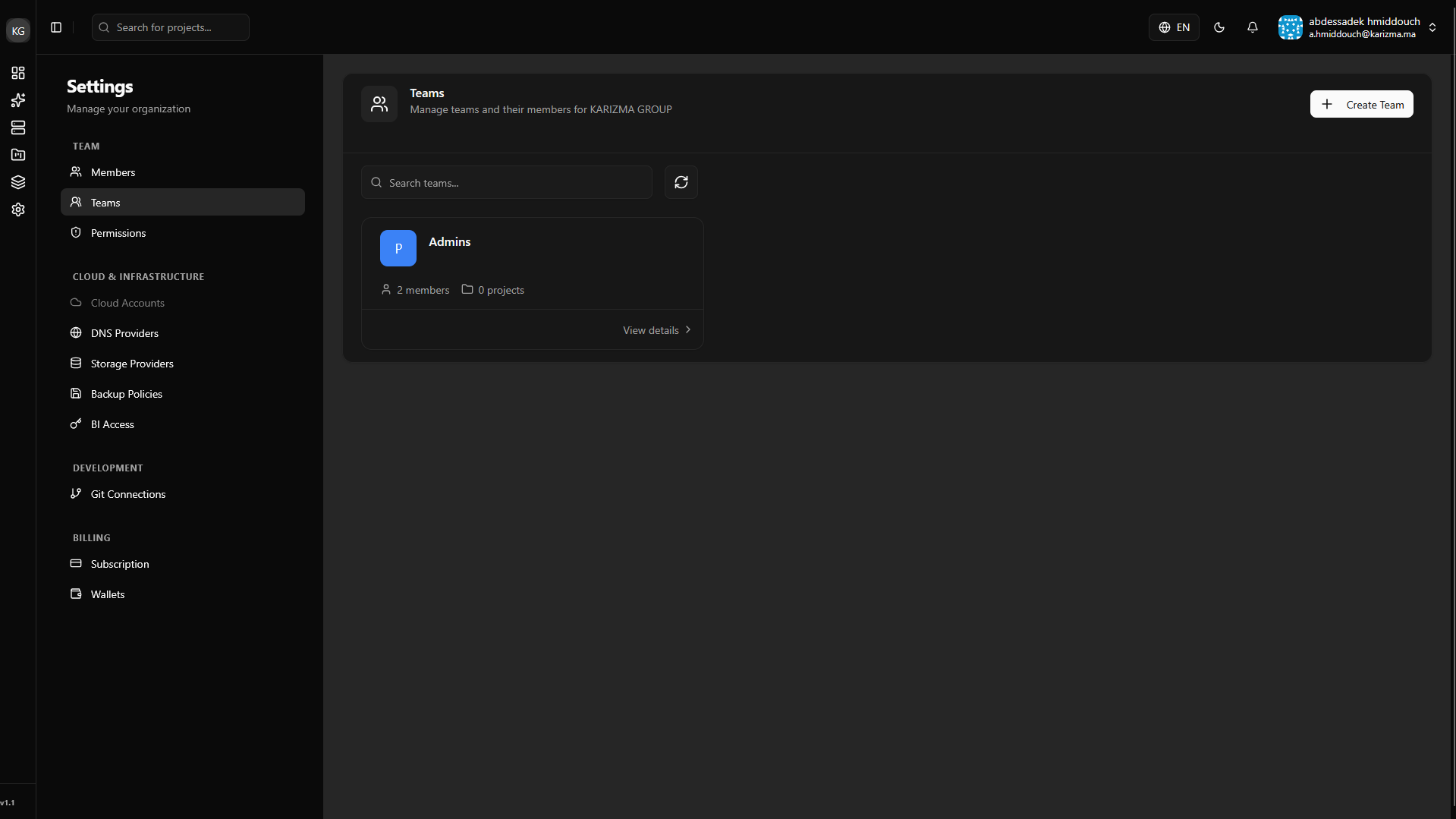
Viewing Team Details
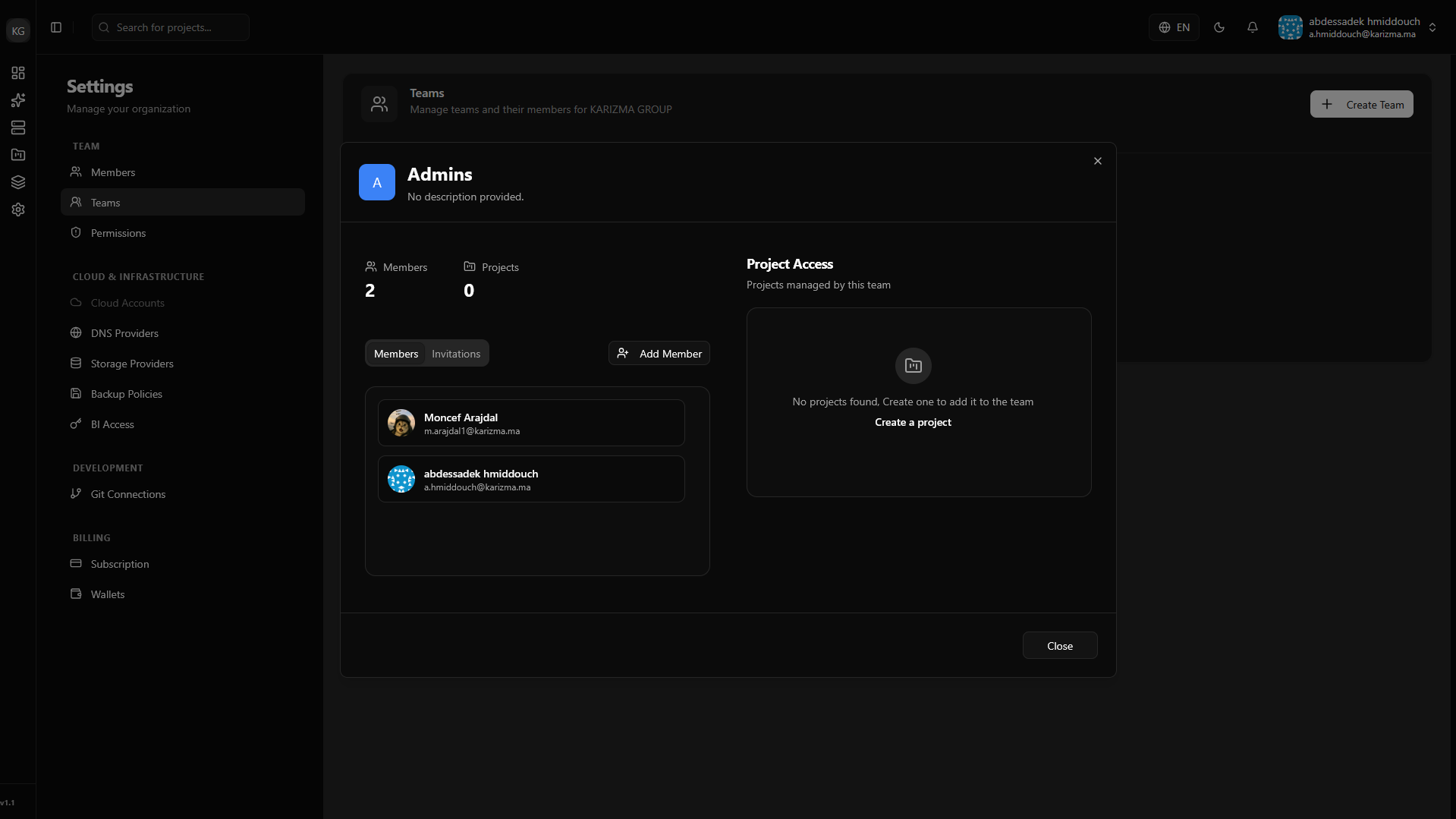
You can easily audit a team's composition. Click on Team Details to view exactly which members belong to the group and what roles they hold within it.
Permissions
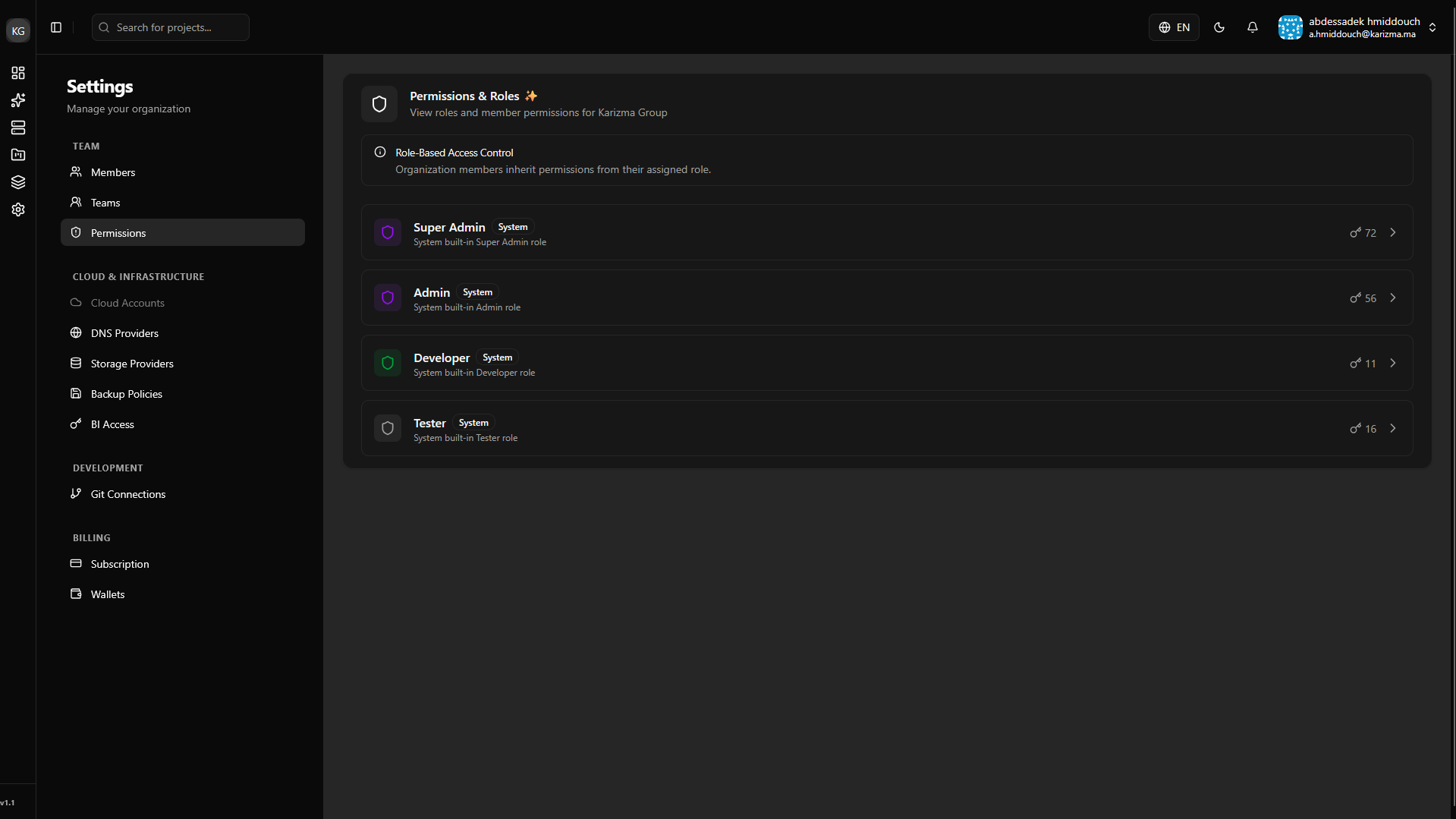
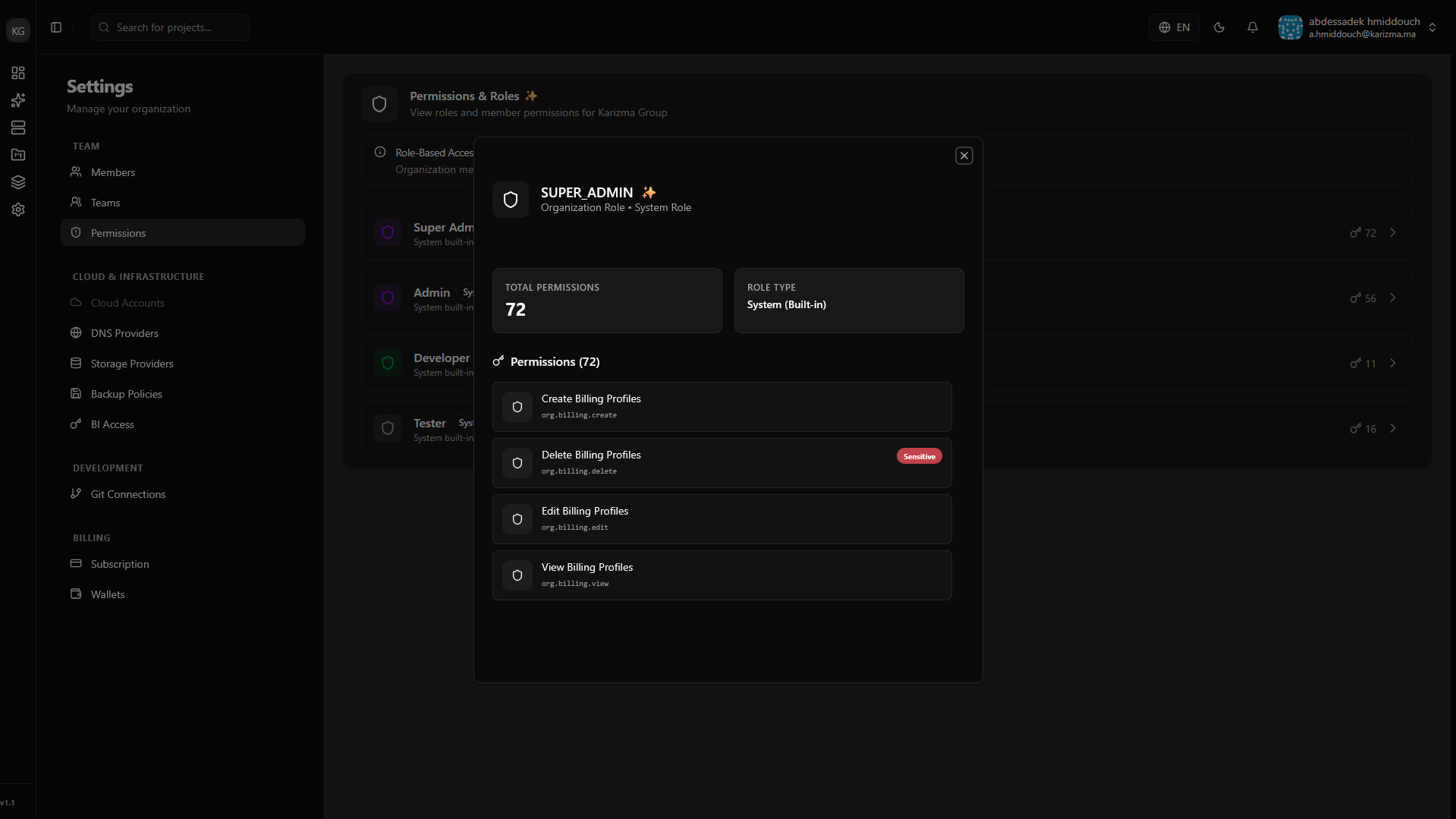
Security relies on strict access control. From the Permissions tab, you can consult the exact capabilities of every role within the platform.
This section provides a clear, read-only matrix of all system roles (such as Admin, Developer, or Viewer) alongside their assigned permissions, ensuring you always know exactly what a user can or cannot do before you assign them a role.
Remember that you can only assign roles that possess permissions equal to or lesser than your own. You cannot grant a user a higher level of access than you currently hold.